Experts
An Expert is a set of knowledge with its own instructions. You add an AI Expert step to an automation, and the AI answers buyers as that Expert, using the documents you attached. You can have several Experts — for example “Product Q&A” and “Shipping & Returns” — each with its own knowledge and tone.
Open it from the sidebar: AI → Experts.
Admins and Managers can create, edit and test Experts. Agents and Viewers can only look.
The Experts list
Section titled “The Experts list”Each Expert card shows its name, its instructions, a status and how many sources are ready (N/M sources ready). The status is one of:
- Ready — the Expert can answer.
- Needs knowledge — the Expert may only answer from its knowledge, but no document is ready yet.
- Paused — the Expert is switched off.
Create an Expert
Section titled “Create an Expert”- Go to AI → Experts and click New expert.
- Type a Name, for example
Product Q&A. - Under 1 · Instructions, describe how the Expert should answer: tone, language, limits, and when a buyer should talk to your team. Example: “Reply as a friendly Thai skincare advisor; keep it under 2 sentences.”
- Leave Only answer from attached knowledge on (recommended). The Expert then uses only your documents and doesn’t make things up.
- Under 2 · Knowledge, attach documents. Use the Upload tab to add a new file, or the Library tab to pick files you already uploaded. See Knowledge Base.
- Click Create expert. The Expert’s page opens.
The Expert page
Section titled “The Expert page”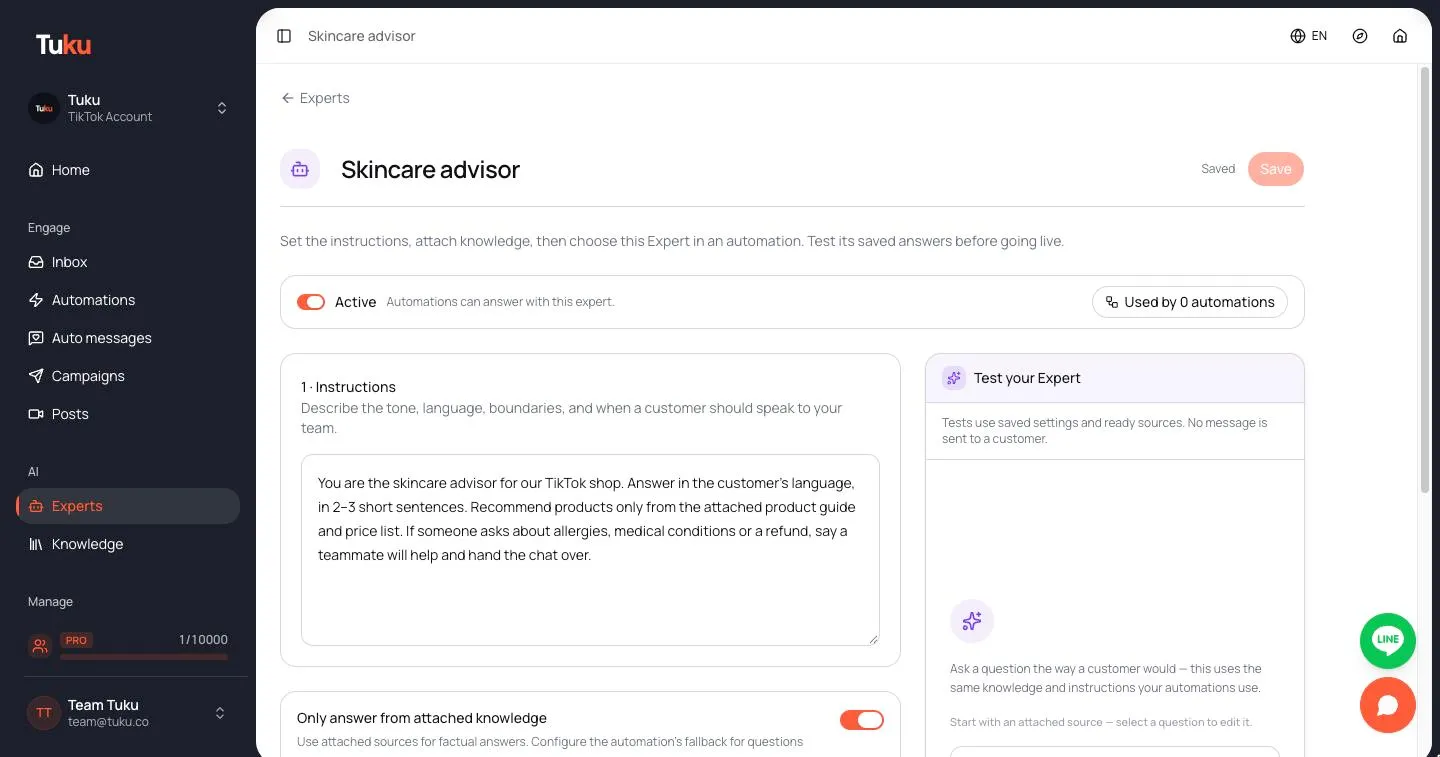
At the top you see the name, a Saved or Unsaved changes badge, and Save.
- Active / Paused switch — turns the Expert on or off. It saves at once (see Active and paused).
- Used by N automations — jumps to the list of automations that use this Expert.
- 1 · Instructions and Only answer from attached knowledge — edit them, then click Save.
- 2 · Knowledge — the attached documents and N/M sources ready. Click Add knowledge to attach more, or remove a document. The file stays in your library. Manage library opens the Knowledge Base. Knowledge changes save at once.
- 3 · Connected automations — each automation that uses this Expert, marked Live or Draft / inactive. Click Choose an automation to go to your automations.
If you try to leave with unsaved changes, Tuku asks you to choose Save & leave or Discard & leave.
Test your Expert
Section titled “Test your Expert”Use the Test your Expert panel on the Expert page to check answers before buyers see them.
- Save your changes first. Tests use the saved settings and only documents that are ready. If you have unsaved changes, the panel asks you to save.
- Pick a starter question (based on your attached documents), or type your own question the way a buyer would.
- Read the answer. It shows how many sources it used.
- If the answer isn’t right, improve the instructions or the documents, save, and test again. Click Restart chat to start over.
No message is sent to any customer during a test.
If the Expert can’t answer, you see No AI answer and the reason — for example no knowledge matched the question. In a real automation, the buyer would get your fallback message instead.
Use an Expert in an automation
Section titled “Use an Expert in an automation”An Expert answers real buyers through the AI Expert step in an automation. The step holds the whole Q&A: it answers follow-up questions until the buyer is done or asks for a person.
- Open an automation in the editor.
- Add an AI Expert step and choose your Expert.
- Write a Fallback message for questions the Expert can’t answer.
- Save and publish the automation.
See AI Expert conversations for how these conversations run and end, and Flow nodes for the step settings.
Active and paused
Section titled “Active and paused”Each Expert is Active or Paused.
- Active — automations can answer with this Expert.
- Paused — automations that use it send their fallback message instead of an AI answer. You can’t test a paused Expert.
Pausing doesn’t change your automations. Use it as an off switch while you fix an Expert’s knowledge.
Delete an Expert
Section titled “Delete an Expert”On the Experts list, click the delete button on a card and confirm.
- The Expert’s knowledge documents are kept in your library, and stay attached to other Experts.
- If an automation still uses the Expert, Tuku tells you which one. Remove the Expert from that automation first.
Experts and knowledge
Section titled “Experts and knowledge”One document can be attached to many Experts, and one Expert can use many documents. Upload your FAQs, policies and product details once in the Knowledge Base, then combine them into focused Experts.