General
The General tab holds settings for the whole workspace. Open Settings from the sidebar (under Manage). General is the first tab.
The page has these cards, from top to bottom:
- Workspace Profile — the workspace name and logo (only if you belong to more than one workspace).
- TikTok account — your connected TikTok accounts and their connection checks.
- Email language — the language of emails Tuku sends to this workspace.
- Danger Zone — delete the workspace (only if you belong to more than one workspace).
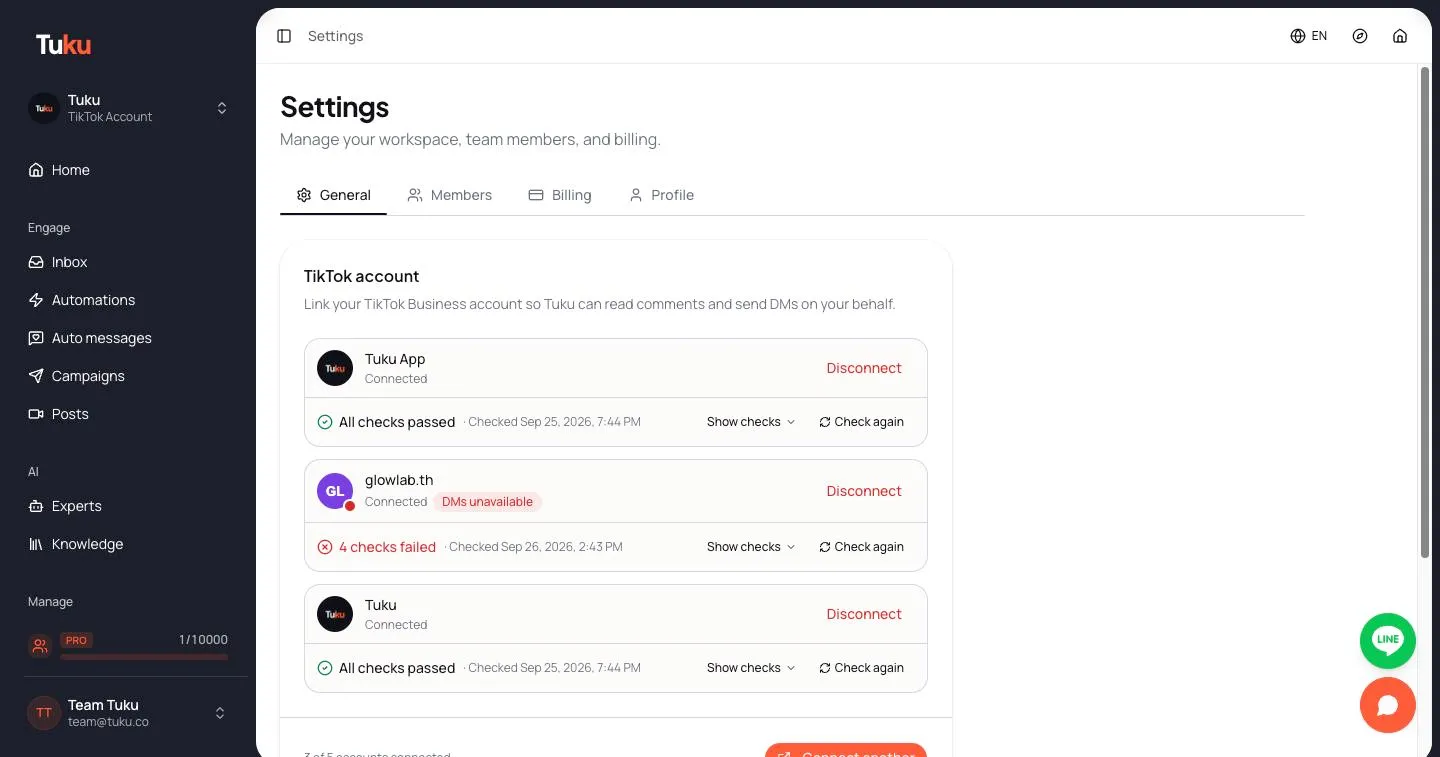
TikTok account
Section titled “TikTok account”This card lists every connected TikTok account. Each row shows:
- The account name and Connected.
- A red DMs unavailable or Reconnect needed badge if DMs can’t work.
- A one-line summary of the connection checks: All checks passed or N checks failed, and when it was checked.
- Show checks to open the full list, and Check again to run the checks now.
- Reconnect if TikTok rejected Tuku’s access or some permissions weren’t approved. It works even at your plan’s account limit.
- Disconnect.
Administrators and Managers see Reconnect and Disconnect.
The footer shows how many accounts you’ve used, for example “1 of 5 accounts connected.”, and the Connect TikTok or Connect another button. Administrators and Managers can connect accounts.
For what each check means and how to fix it, see Connect TikTok → Connection checklist. For reconnecting and disconnecting, see Connect TikTok → Reconnect an account and Disconnect an account.
Email language
Section titled “Email language”Choose the language for emails Tuku sends to this workspace, such as onboarding tips and usage alerts. The choices are English, ไทย (Thai), Bahasa Indonesia, and Tiếng Việt.
The change saves as soon as you pick a language. Administrators and Managers can change it. Other roles see it but can’t change it.
Workspace Profile
Section titled “Workspace Profile”This card only appears if you belong to more than one workspace.
- Upload image — the workspace logo (PNG, JPG, or SVG, max 2MB). A square image works best. It shows in the sidebar and in emails.
- Name — the workspace name your team sees. It shows in the sidebar and in emails.
Click Save changes. When you rename the workspace, its web address changes too, so update any bookmarks.
Danger Zone
Section titled “Danger Zone”This card only appears if you belong to more than one workspace. It shows Delete workspace, but the button is turned off in the app. To delete a workspace and its data, contact support.
If you only want to stop paying, cancel your plan instead. Your workspace moves to Free and keeps its data. See Plans & billing → Cancelling a paid plan.
App version
Section titled “App version”The bottom of the page shows the app version, for example Tuku v1.44.2. Include it when you report a problem.
Other settings
Section titled “Other settings”| Setting | Where |
|---|---|
| Team and roles | Settings → Members |
| Plan and billing | Settings → Billing |
| Your name and photo | Settings → Profile |