Home
Home is the first screen you see after you log in. Open it any time from Home in the sidebar (under Engage). It gives you a quick view of your workspace and your next step. For full reports, see Analytics.
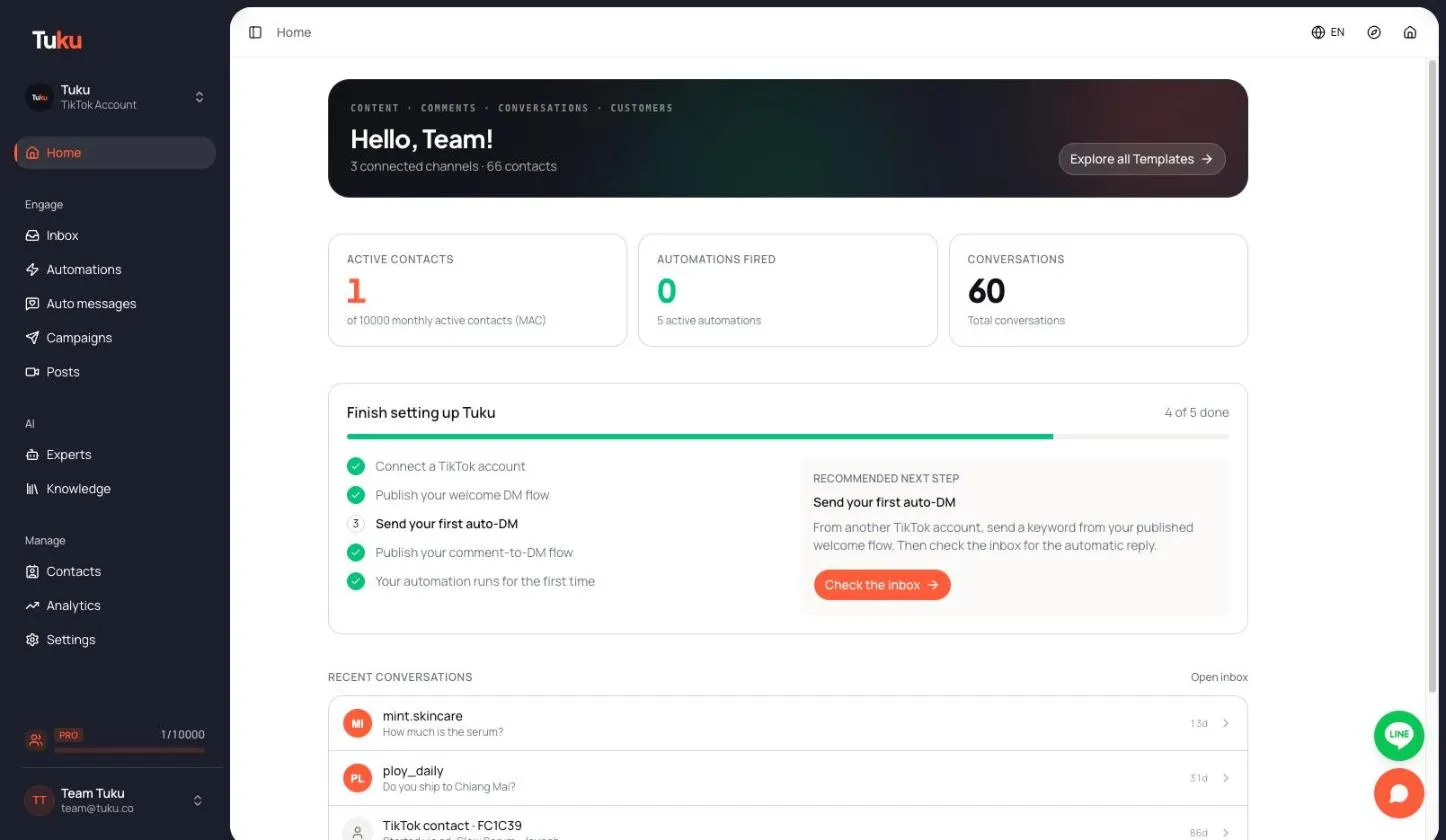
Greeting
Section titled “Greeting”The top of the page says Hello, {your first name}! Under it, one line shows how many TikTok accounts are connected and how many contacts you have.
On the right there is one button:
- Connect your TikTok account — shown when no TikTok account is connected. It opens Settings → General, where you connect. See Connect TikTok.
- Explore all Templates — shown once an account is connected. It opens the template library on the Automations page. See Templates.
Your numbers
Section titled “Your numbers”Three tiles show the main numbers. Click a tile to open the related page.
| Tile | What it counts | Click opens |
|---|---|---|
| Active Contacts | Monthly Active Contacts (MAC) in your current billing cycle, shown against your plan limit (“of 100 monthly active contacts (MAC)”). | Contacts |
| Automations Fired | How many times your automations started in the last 7 days. Under it: how many automations are active. | Automations |
| Conversations | Total conversations in the workspace. | Inbox |
To learn how MAC are counted, see Plans & billing → Monthly Active Contacts.
Finish setting up Tuku
Section titled “Finish setting up Tuku”Workspace Administrators see a setup checklist called Finish setting up Tuku. It shows your progress as “X of 5 done”. Tuku ticks each step by itself when it happens:
- Connect a TikTok account
- Publish your welcome DM flow — an automation that replies when someone DMs you a keyword.
- Send your first auto-DM — the welcome flow sends its first reply.
- Publish your comment-to-DM flow — an automation that DMs people who comment.
- Your automation runs for the first time — the comment flow runs on a real comment.
Next to the list, the Recommended next step panel explains the next step and has a button for it, for example Build welcome flow or Build comment-to-DM. These buttons open a ready-made template in the automation editor.
On a phone, the build steps ask you to switch to a laptop or iPad. Building automations works best on a bigger screen.
When all five steps are done, the card changes to Setup complete.
Recent conversations
Section titled “Recent conversations”Below the checklist you see your five newest conversations, with the latest message and how long ago it arrived. The preview reads the same as in the inbox: “You:” before messages you sent, a short label for images or Q&A cards, and lines such as Started from a TikTok ad. Click a row, or Open inbox, to go to the shared inbox. This section appears after your first conversation.
The tour
Section titled “The tour”The first time an Administrator opens Home on a computer, a short tour shows the sidebar, the assistant, your numbers, and how to build your first automation. To watch it again, click Take a tour (the compass icon) in the top bar. The tour is not available on phones.
If you haven’t connected TikTok
Section titled “If you haven’t connected TikTok”Until a TikTok account is connected, Tuku takes you to the connect screen when you open the app. You can click Skip & Continue to look around first. Tuku asks again the next time you come back. Nothing is automated until an account is connected.