Profile
The Profile tab (Settings → Profile) is your personal account, not the workspace. If you belong to several workspaces, your profile is the same in all of them.
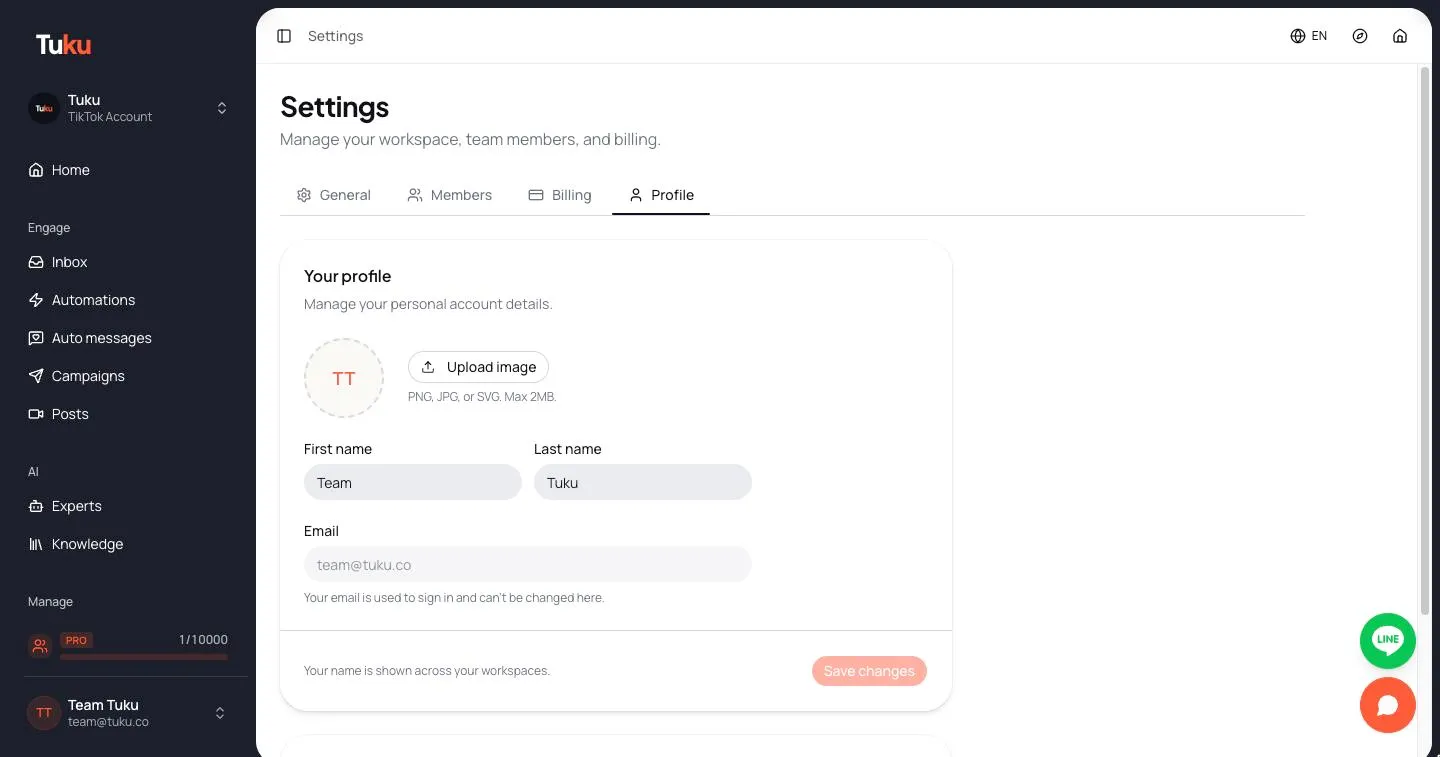
Your profile
Section titled “Your profile”| Field | Notes |
|---|---|
| Photo | Click Upload image (PNG, JPG, or SVG, max 2MB). If the workspace has a logo, you can click Use workspace icon instead. |
| First name and Last name | Shown across your workspaces. In the inbox, your name appears under the replies you send, and on chats assigned to you. Both fields are required. |
| Read-only. It’s the email you sign in with. |
Click Save changes to save your name or photo.
Preferences
Section titled “Preferences”The Preferences card is marked Coming soon. Settings like language and notifications will be added here later. There is nothing to set yet.
To change the app language now, use the language switcher in the top bar.
Signing in
Section titled “Signing in”You can sign in to your account in two ways:
- Email and password — on the sign-in page, enter your email and password, then click Sign in.
- Sign-in link — click Email me a sign-in link instead, enter your email, and click Send sign-in link. Tuku emails you a link. It works for 15 minutes.
Forgot your password?
Section titled “Forgot your password?”- On the sign-in page, click Forgot password?
- Enter your email and click Send reset link.
- Open the email and click the link. It works for 1 hour.
- Enter a new password twice and click Reset password.
If you have always used sign-in links, you can use these steps to set a password for the first time.